

Canary Rollout
Shift traffic to a new destination gradually, and roll back instantly if needed.
A canary rollout sends a small share of traffic to a new destination while the rest continues to the one you already trust, so you can watch how it performs before committing to it fully.
Set it up
- On the route you want to roll out through, set its Targeting Strategy to Weighted.
- Add a target for your current destination with a high weight, and a target for the new destination with a low weight — 90 and 10, for example, so roughly 10% of traffic reaches the new destination.
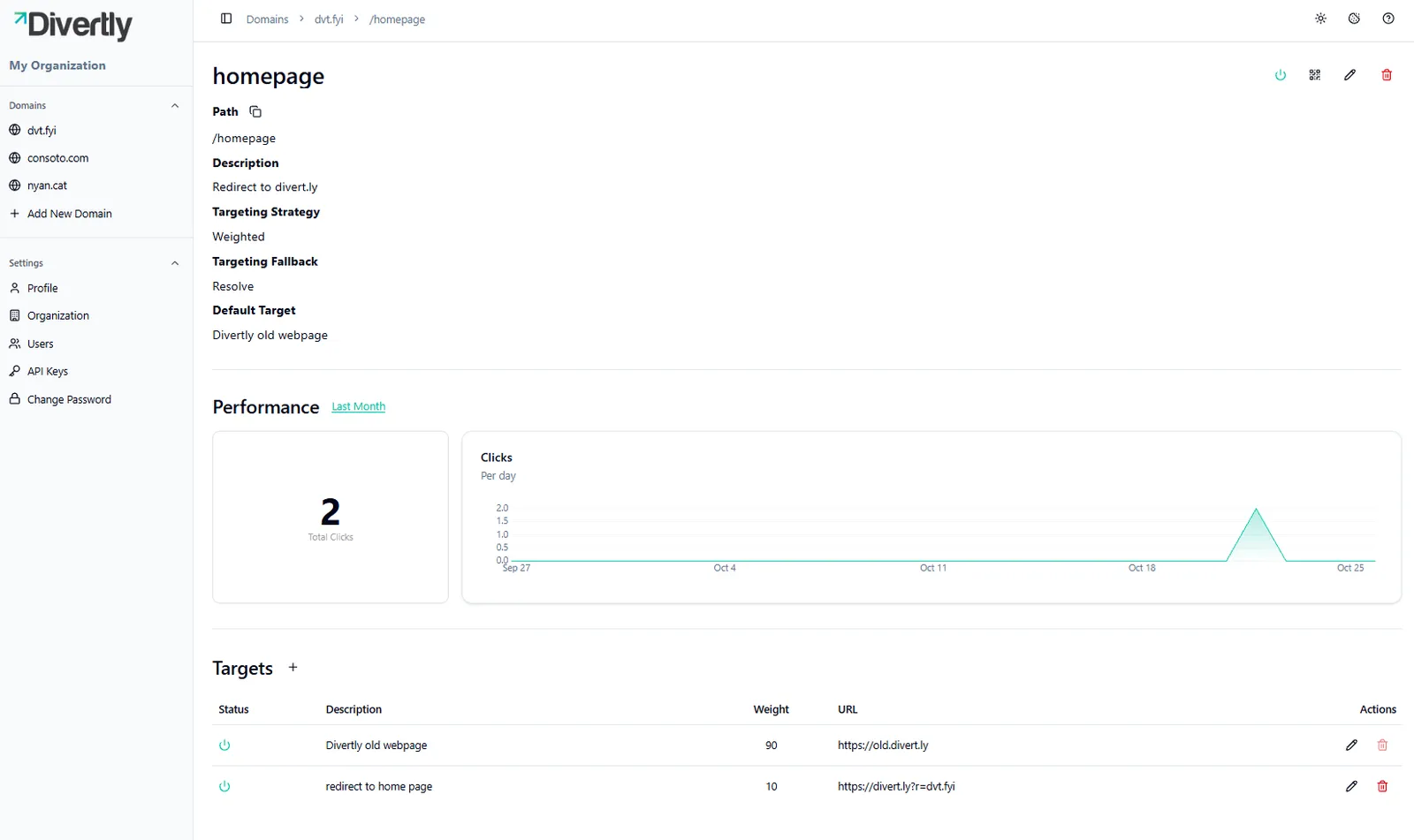
- Watch the new target’s own metrics to see how it’s performing in isolation, separately from the route’s overall traffic.
Ramp up
As you gain confidence, increase the new target’s weight — and decrease the old one’s — in whatever steps make sense for you. There’s no separate “promote” step; you’re just editing weights on the same two targets.
Roll back
If something looks wrong, set the new target’s weight back to 0, or disable it outright. Traffic returns to the original target immediately.
Finish the rollout
Once the new target is handling all the traffic you want it to, either delete the old target or leave it in place, disabled, in case you need it again.