

Managing API Keys
Issue and revoke credentials for your own applications and scripts.
An API key lets your own code authenticate to the Divertly API without a person signing in. For how to use one once you’ve created it, see Authentication.
Create an API key
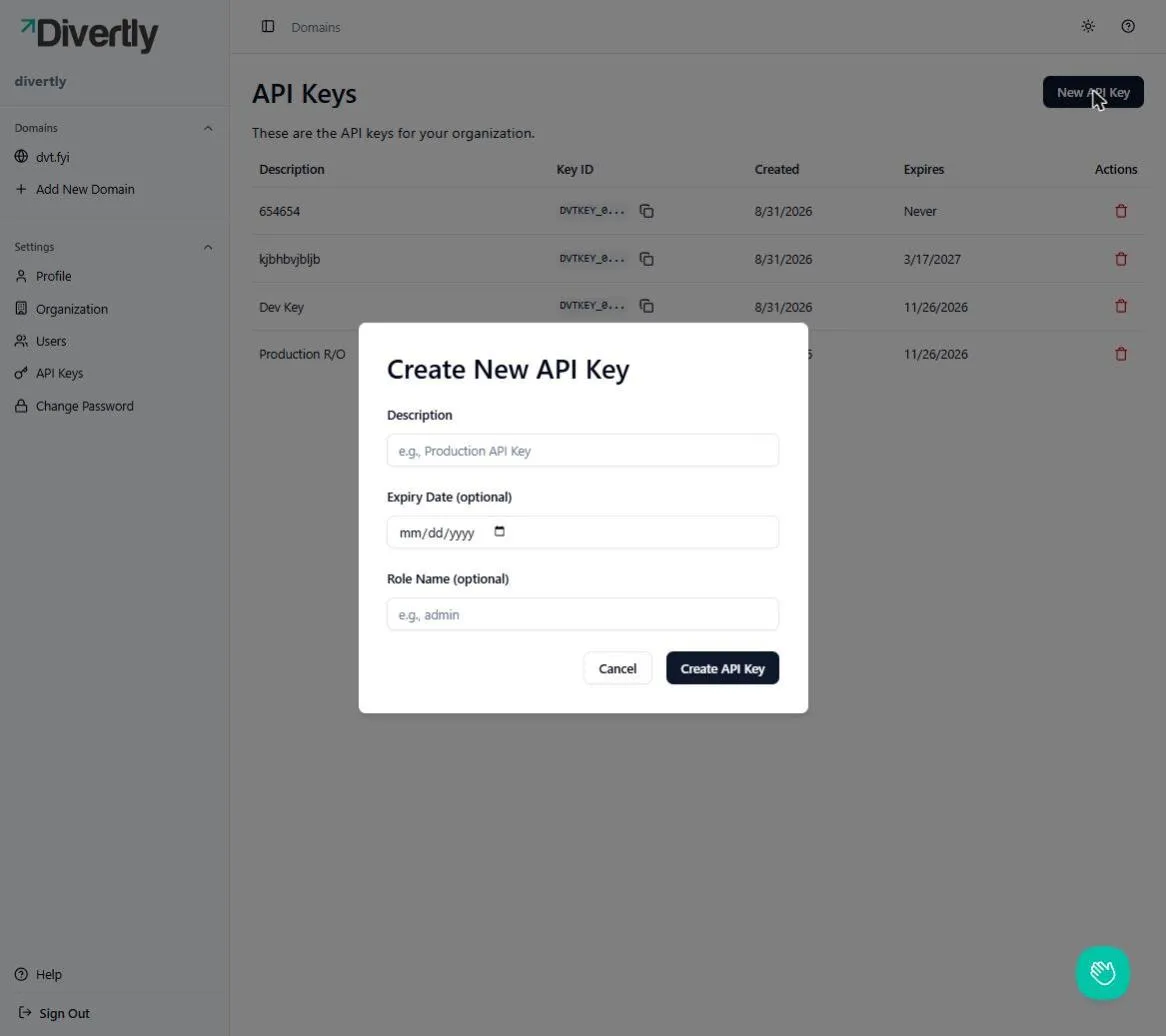
- From Organization > API Keys, click New API Key.
- Enter a Description — something that will tell you what this key is for when you look at it again later, like “production deploy pipeline” or “staging canary script.”
- Optionally set an Expiry Date. After that date, the key stops working.
- Optionally set a Role Name — see Managing Users for the role names and their access. The role is enforced, so the key can only do what that role permits, and you can’t give a key a role higher than your own. If you’re not sure which name to use, call
GET /v1/organizations/{org_id}/rolesto list the exact names your organization can assign. - Click Create API Key.
The key’s secret is shown once, immediately after creation, and can’t be retrieved afterward. Copy it somewhere safe before closing the dialog.
View your API keys
The API Keys table lists every key’s description, key ID, creation date, and expiration date (or “Never” if none was set). The key ID is truncated in the table — click the copy icon to copy the full value.
Delete an API key
Click the trash icon on a key’s row and confirm. Deleting a key is immediate and permanent: anything authenticating with that key stops working right away.